
Setup and hardware
Plug in the drive. Start the launcher. Start teaching.
The drive carries the software and the AI model. A compatible Windows computer runs them. Here is what happens when you start it, what Windows may ask you, and how to find out whether your computer is a good fit.
- Everything runs from one portable drive
- Unknown Publisher prompts explained
- Tested setup published in full
- Connect the drive
- Run START-EDUCATOR.bat
- Open the dashboard

Setup
The physical setup
This is a portable drive for a computer. It has no processor of its own, so your computer does the AI work.
Connect the configured external drive
Use a USB port on a compatible Windows computer.
Start the local software
Open the drive’s folder and run the launcher. A server window opens. Windows may first show a security prompt, explained below.
Wait for the model to load
The model loads into the computer’s memory. Loading time depends on the computer and the drive.
Open the dashboard in a browser
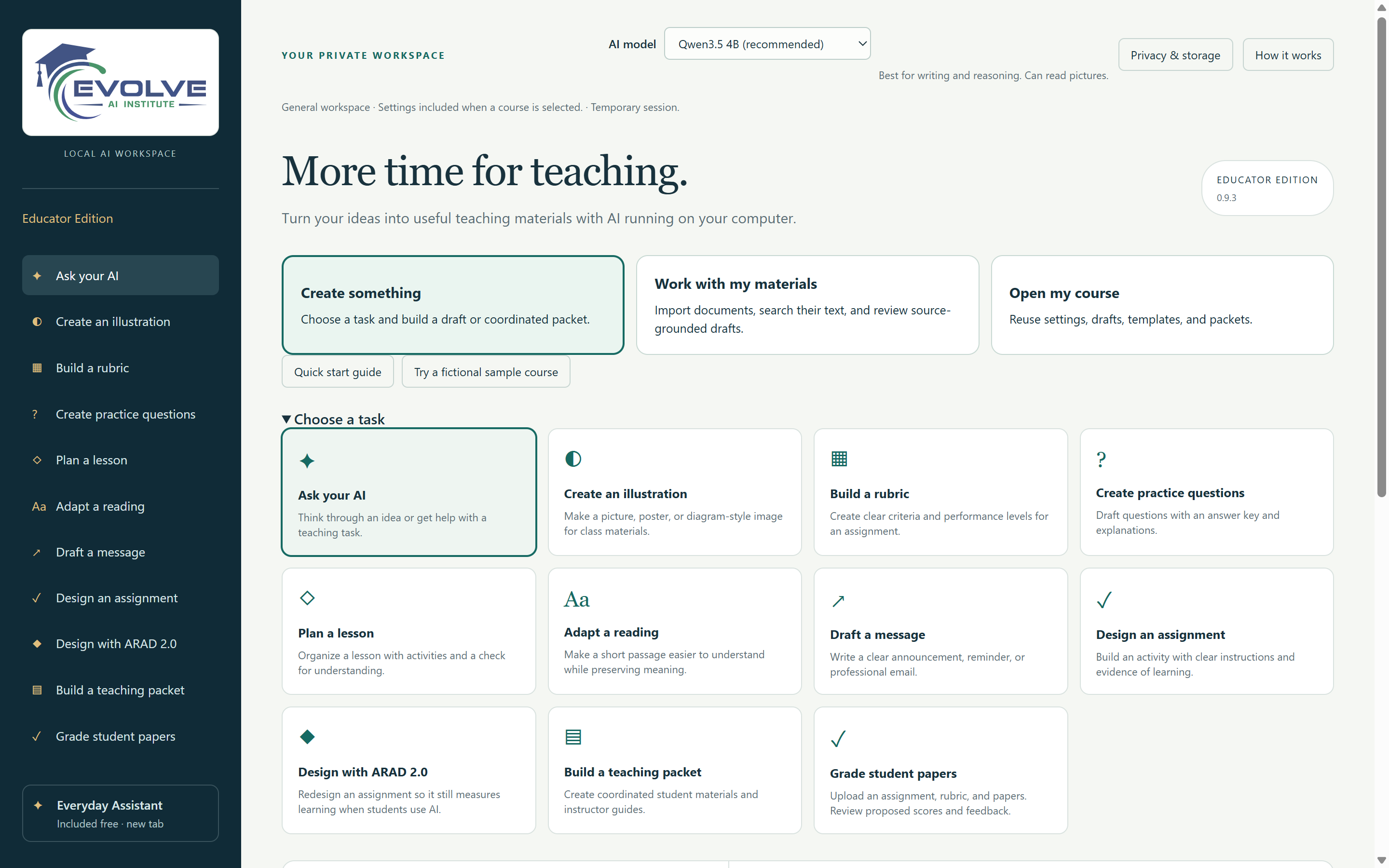
The dashboard opens at a local address such as http://127.0.0.1:8080 and reports “Local AI ready” when it can generate.
Use the workflows and export files
Create drafts, then export to Word or Print / Save PDF. When you finish, stop the server with Ctrl+C in its window and safely eject the drive.
Windows security warnings
An “Unknown Publisher” warning is expected
When you start the software, Windows may display an “Open File - Security Warning” for the launcher, such as START-AI.bat, and for the local AI server, llama-server.exe. Windows shows this prompt for programs that carry no digital signature identifying their publisher. The launcher and the open-source llama.cpp server on the drive are currently unsigned, so Windows lists the publisher as “Unknown Publisher.”
The warning tells you that Windows cannot confirm who published the file. You confirm it instead, by checking where the file came from.

START-AI.bat, a Windows batch file.

llama-server.exe, in the runtime folder.
Before you select Run, check three things
- The Name and From lines point to the
OfflineAIfolder on the Evolve AI drive. The drive letter may differ on your computer, for exampleE:\in place ofD:\. - The file is one you meant to open: a
START-launcher in the main folder, orllama-server.exein theruntimefolder. - The drive came to you directly from Evolve AI Institute and nobody else has changed it.
If any detail looks different, select Cancel and contact us.
Other prompts you may see
- A blue “Windows protected your PC” screen (Microsoft Defender SmartScreen). Select “More info” to see the app name, and continue only when it matches a file listed above.
- A message that an administrator blocked the app. Your organization manages this computer. Contact your technology department, and keep within its rules.
Leaving “Always ask before opening this file” checked is fine. Windows will simply ask again next time. Keep your antivirus and Windows security settings switched on.
Development target
Tested development setup
The Educator Edition was built and tested on the computer below. These details describe one tested setup. They are neither minimum requirements nor a promise of compatibility with similar computers.
| Operating system | Windows 11 |
|---|---|
| Processor (CPU) | Intel Core i9-12900HK |
| Memory (RAM) | 64 GB |
| Graphics (GPU) | NVIDIA RTX 3060 laptop GPU with 6 GB of video memory (VRAM) |
| Drive | Seagate external USB hard drive |
| AI runtime | llama.cpp |
| AI model | Qwen3-4B, quantized |
| Context setting | 4,096 tokens |
Performance and limits
- Performance depends on the host computer, the model, and the drive.
- The 16,384-token context limits request size, so long papers or complex requests can be blocked. Documents are never shortened silently to fit.
- Running on the graphics card or on the processor alone each needs suitable runtime files and testing. The drive includes a separate processor-only launcher, which is slower.
- School- and employer-managed computers may restrict launching software from a drive.
- First-time setup, updates, and downloads may require internet access.
- Mac and Chromebook compatibility has not been established.
Compatibility inquiry
Ask whether your computer is a good fit
We review each computer individually. There is no automatic pass or fail check, because the Educator Edition has only been tested on the development setup. Tell us what you have and we will reply by email with what we know.
Where to find these details
- Windows version, processor, and installed memory: open Settings, then System, then About.
- Graphics card and video memory: open Task Manager, select Performance, then GPU.
We never need serial numbers or other device identifiers.